
If you’re managing a Google Business Listing and need to transfer ownership, you’re in the right place. In our guide to transferring ownership of a Google Business Listing we will walk you through the steps. Remember whether you’re handing over a listing to a new owner or reassigning roles within your team, Google makes it easy—but understanding Google Business Profile roles is essential.
Why Transfer Ownership of a Google Business Listing?
Transferring ownership ensures the right person has full control over your listing, including:
- Updating business information
- Responding to reviews
- Managing photos and posts
- Accessing insights
It’s especially important during business transitions, team changes, or when working with marketing agencies like Petite Digital.
Google Business Listing Roles
Google offers four main roles for Business Profiles:
Primary Owner – Full control, can add/remove users, edit details, and delete the listing. Only one primary owner is allowed.
Owner – Almost full control, cannot remove the primary owner but can manage info, posts, and users. Only owners can change access roles for other owners and managers. This includes primary ownership of the Business Profile.
Note an existing owner can transfer the primary ownership to a newly added owner after an initial holding period. After the transfer, the new primary owner must wait 7 days before they can manage all features, such as removing other users or deleting the profile.
For example, a new owner takes over the business. They are added onto the listing as an owner by the existing primary owner or owner. After 7 days they will be able to change their status to Primary Owner and remove any user’s owner or otherwise no longer connected to the business.
Manager – Can edit business info, post updates, respond to reviews, and view insights. Cannot manage users. This is most used for third parties such as Petite Digital managing the listing on behalf of the small business.
Site Manager – Limited access for posts, reviews, and basic info. Cannot manage users or insights. This would be an access level you may give a staff member who does not need to access the analytical data that a marketing person would need.
Step-by-Step Guide to Transfer Ownership
Step 1 – Sign in to Google Business Profile
Go to Google Business Profile and log in with the current owner account.
Step 2 – Select Your Business
If you manage multiple listings, choose the one you want to transfer.
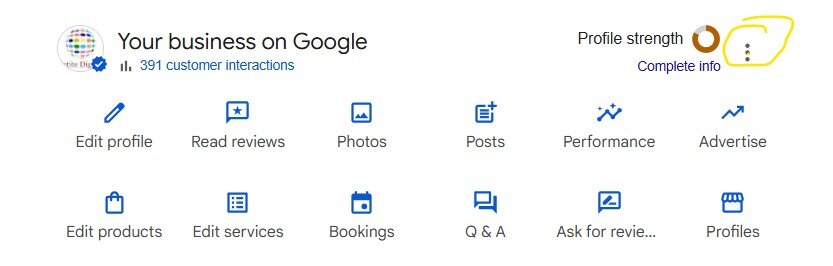
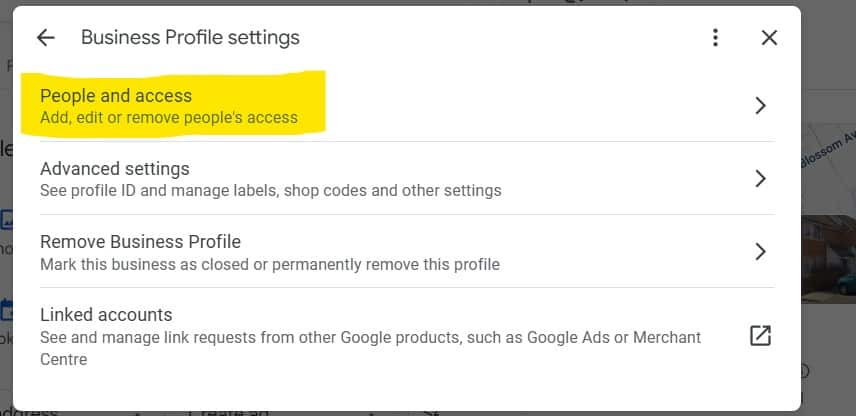
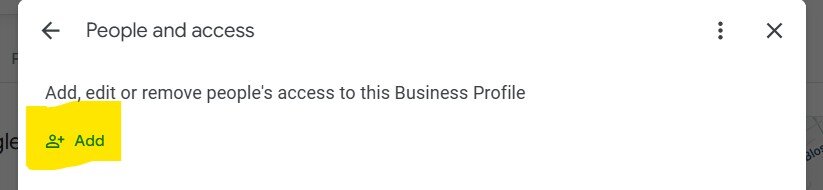
Step 3 – Open Users Settings
Click “Users” in the menu to see current access levels.
Step 4 – Invite a New Owner
Click “Add users” (plus icon)
Enter the email of the new owner
Select Owner as their role
Click Invite
Step 5 – Accept the Invitation
The new owner must accept the invite via email.
Step 6 – Assign Primary Ownership (Optional)
Once the invitation is accepted, you can transfer Primary Owner status to them.
Step 7 – Confirm and Verify
Ensure the new owner has full access and that all business info is accurate.
Best Practices
- Keep at least two owners to avoid losing access
- Review roles regularly as team members change
- Only grant owner-level access when necessary
Transferring Ownership of a Google Business Listing is quick and straightforward if you understand roles and follow the steps carefully. Proper management ensures your business stays visible and trustworthy online.
If you need any help in transferring ownership of a Google Business Listing get in touch today