
When using Facebook as part of a digital marketing strategy, it’s important to distinguish between personal profile and a Facebook business page. These two account types are built for very different purposes and using the wrong one can limit your reach—or even violate Facebook’s terms of service.
Personal Profile: Individual Use Only
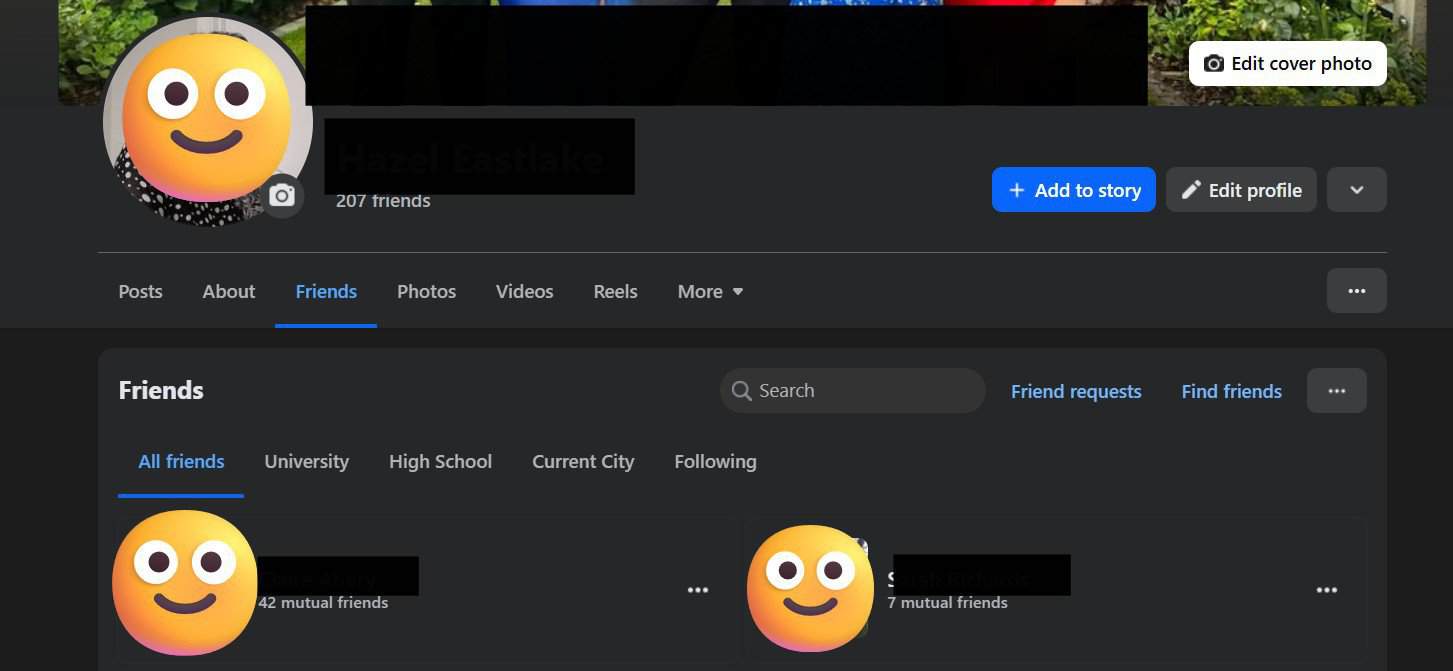
A personal profile is the account you create with your own name when signing up for Facebook. It’s designed for individuals to:
- Connect with friends and family
- Share personal updates
- Join groups or participate in community discussions
While you can share business-related posts from a personal profile, Facebook’s platform policy explicitly states that profiles are not intended for commercial activity. Running a business or brand from a personal profile can lead to:
- Limited visibility in News Feed (as Facebook prioritises personal connections)
- Restricted access to professional tools like ad management
- Potential suspension if your profile is flagged for commercial use
My main concern though about people using a personal profile for business use is that people have to ‘friend’ the business in order to hear updates, this ultimately displays your personal profile in the friends list of the profile being used.
Facebook Business Page: Purpose-Built for Brands and Organisations
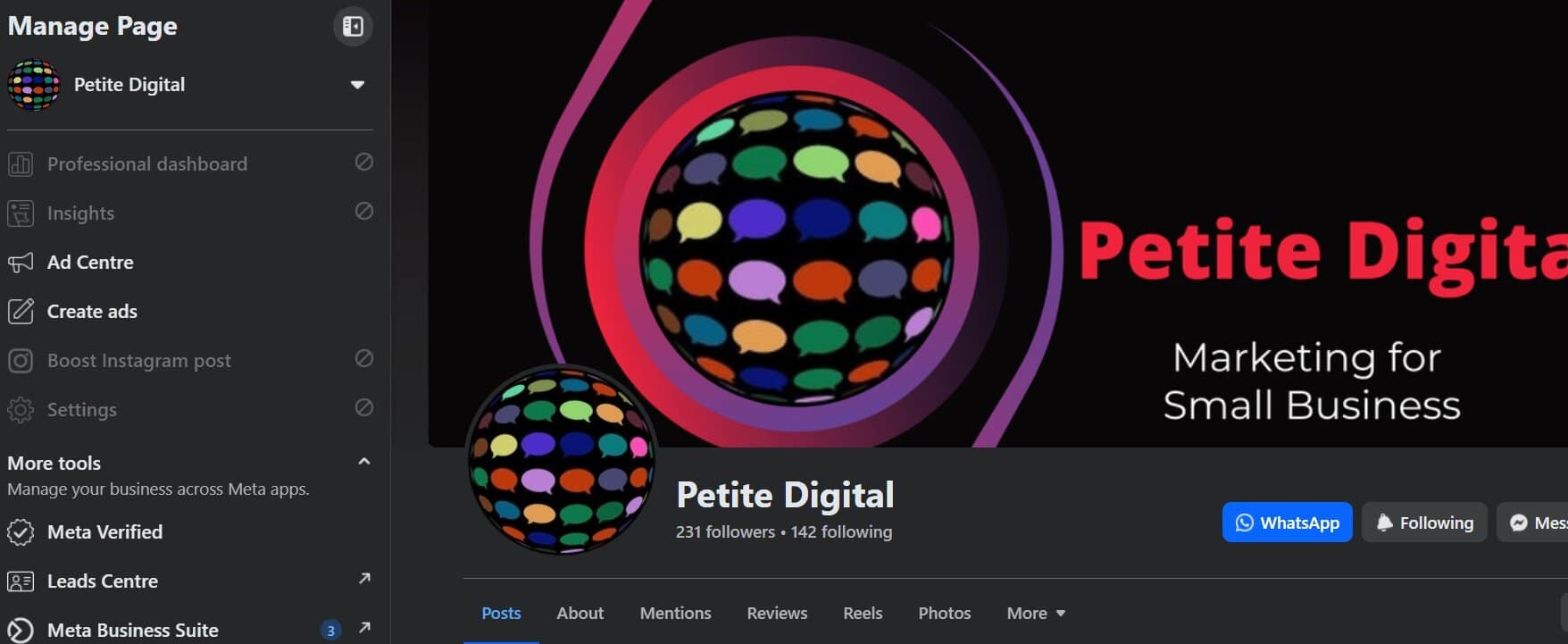
A Facebook business page is a dedicated, public-facing presence that gives companies and brands access to Facebook’s marketing and analytics ecosystem. With a business page, you can:
- Run Ads and Boost Posts: Integrate directly with Meta Ads Manager for advanced audience targeting and budget control.
- Access Facebook Insights: Track metrics such as reach, engagement, and demographic breakdowns to measure campaign performance.
- Add Business-Specific Details: Include contact information, business hours, location maps, and a call-to-action (CTA) button such as “Book Now” or “Contact Us.”
- Assign Page Roles: Grant administrators, editors, or advertisers access without sharing personal login credentials.
These features make business pages the only scalable and compliant option for brands.
With a business page your followers are kept anonymous from other followers (with the exception of friends who also follow the brand)
So now we have established that a business page is the way to go let’s talk you through setting on up.
How to Set Up a Facebook Business Page
One thing I have to explain to people repeatedly is that creating a business page requires a personal Facebook login to act as the “owner,” but the page itself remains separate and public.
You ‘switch’ into the business in order to post content, reply to comments, messages etc. Your personal profile is not the brand or business and you can remain completely anonymous should you wish it to do so.
Step 1: Log in to Your Personal Profile
Access Facebook with your personal account. Your personal data remains private—your name will not be publicly linked to the page unless you choose to display it.
Step 2: Create the Page
- On desktop: Click the “+” icon in the top-right corner and select Page.
- On mobile: Open the menu (☰) and choose Pages → Create.
Step 3: Configure Page Information
Provide:
- Page Name: Your business name (ensure it matches your brand exactly)
- Category: Select relevant categories (e.g., “Digital Marketing Agency”)
- Description: A concise summary of services or offerings
Step 4: Upload Brand Assets
- Profile Image: Typically your logo in a square format (recommended 180×180px minimum)
- Cover Image or Video: A banner (recommended 820×360px) or a short video that visually represents your brand
Step 5: Add Key Business Details
Complete all applicable fields under Edit Page Info, including:
- Website URL
- Contact email or phone number
- Business hours and location (if relevant)
Step 6: Create Initial Content
Publish a welcome post or introductory video to establish context for new visitors. Aim for professional-quality visuals and concise messaging.
Step 7: Invite and Promote
- Use the Invite Friends tool to seed initial followers.
- Add the page link to your email signature, website header/footer, and other social profiles.
- Optionally, launch an introductory ad campaign using Meta Ads Manager.
Best Practices for Ongoing Management
- Content Scheduling: Use Meta Business Suite or third-party scheduling tools to plan posts. https://business.facebook.com/
- Performance Tracking: Monitor engagement metrics in Facebook Insights to refine your content strategy.
- Role Management: Assign page roles (Admin, Editor, Advertiser) to team members or agencies as your operation scales. For more about page roles and how to add an employee to your Facebook business page see my blog https://petitedigital.co.uk/social-media-marketing-tips/how-to-add-an-employee-to-your-facebook-business-page/
Final Takeaway – Nmmmm Takeaway 🍕
For businesses serious about brand visibility and data-driven marketing, a Facebook business page isn’t just recommended—it’s essential. It unlocks analytics, advertising capabilities, and scalability that personal profiles simply can’t provide.
If you’d like expert help with page setup or ongoing management, Petite Digital can handle everything from branding and page optimisation to paid social campaigns.